

Invoices and standing orders
Invoices
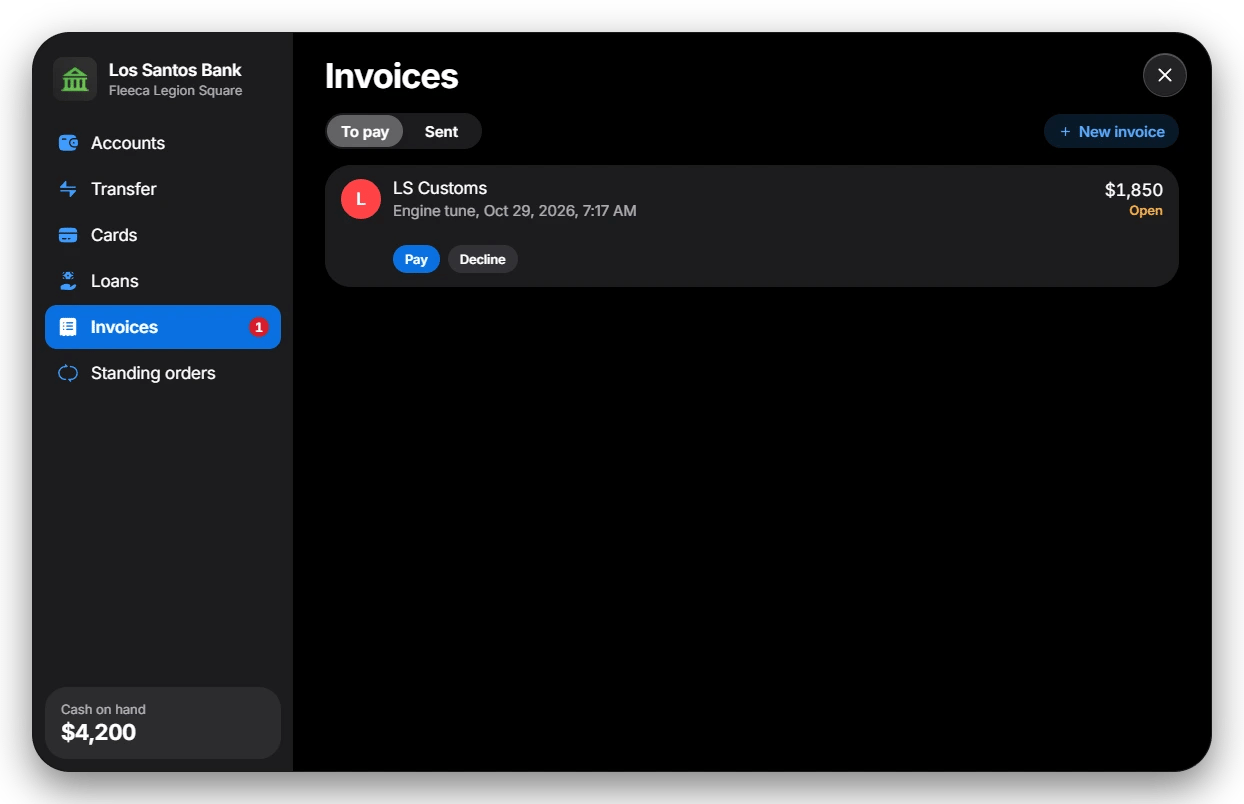
- Pick a player standing nearby (within
Config.Invoices.Distance, default 5 metres). - Enter the amount (up to
Config.Invoices.MaxAmount) and a reason. - Choose the account the money should go to: the checking account, or a business account of the player’s job. A business invoice shows the business name as the sender.
Config.Privacy.ShowNearbyNames = true shows player names instead.
Other scripts (fines, shops, mechanics) can send invoices with the
CreateInvoice export.
Standing orders
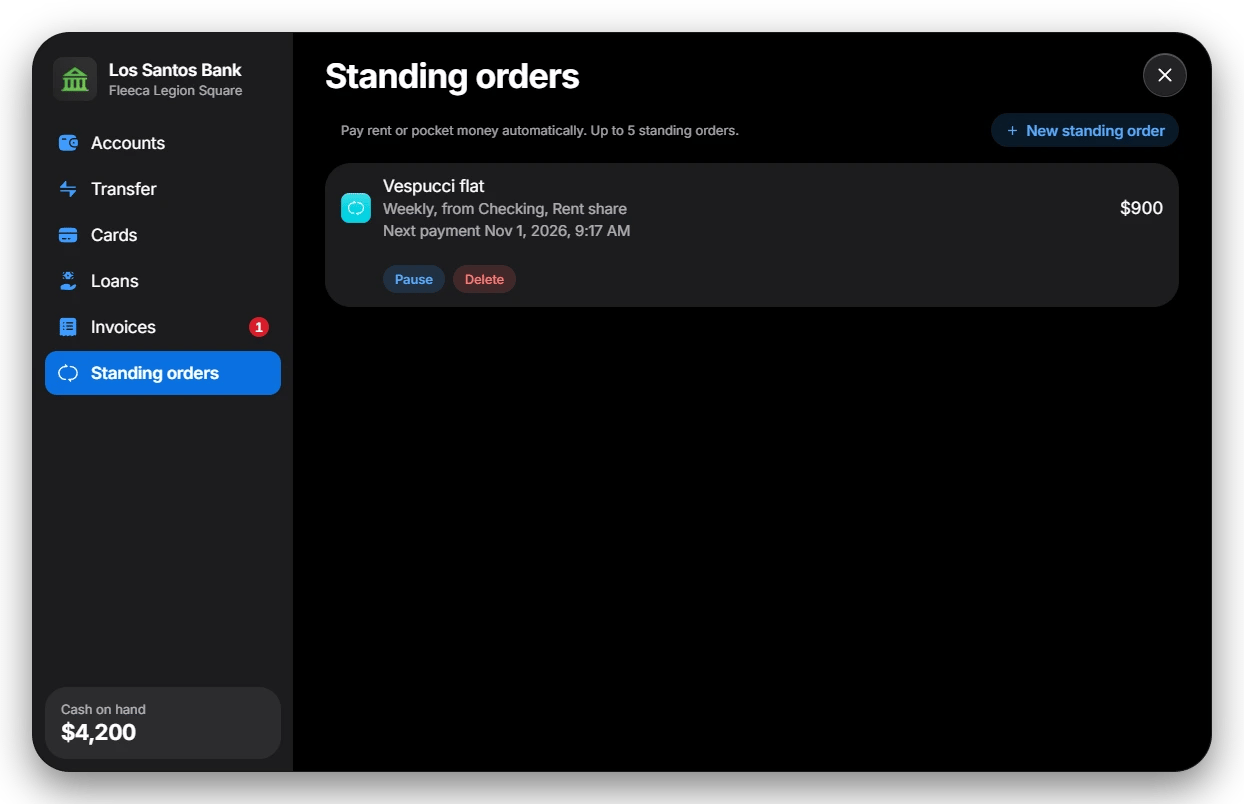
- They can be set up from checking, savings and shared accounts (shared: owners and managers).
- The interval is one of
Config.StandingOrders.Intervals(default every 24, 72 or 168 hours). - A player can have up to
Config.StandingOrders.Maxstanding orders (default 5). The amount is limited byConfig.Transfers.MaxAmount. - Orders can be paused and resumed or deleted at any time.