

I found a bug — what should I do?
I found a bug — what should I do?
How do I give myself or others permission to approve music?
How do I give myself or others permission to approve music?
/music-verify:- The command toggles: no permission → grants it, already has it → revokes it
PLAYERIDis the server ID of the player (visible in the player list / txAdmin)- Only administrators can run the command
All Commands
My Music Library is empty — what do I do?
My Music Library is empty — what do I do?
Add songs through the Music app
Approve the pending songs
I don’t hear music in the Music app
I don’t hear music in the Music app
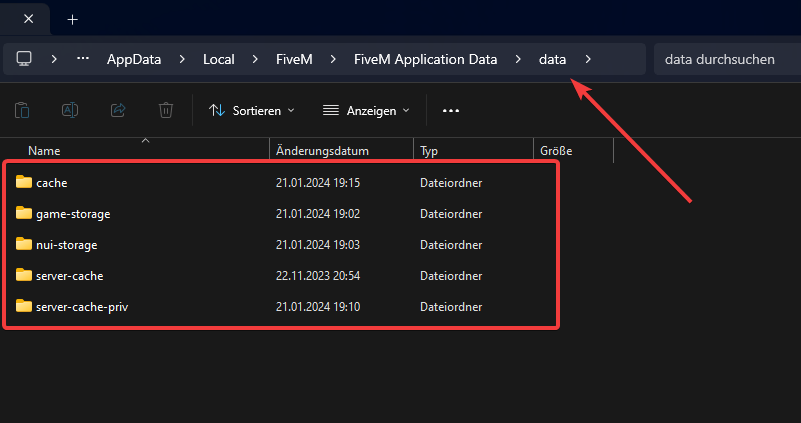
- Clear your client cache.
- Check that GTA music is turned on.
- Verify your Windows volume mixer isn’t at 0% (this is independent of FiveM).

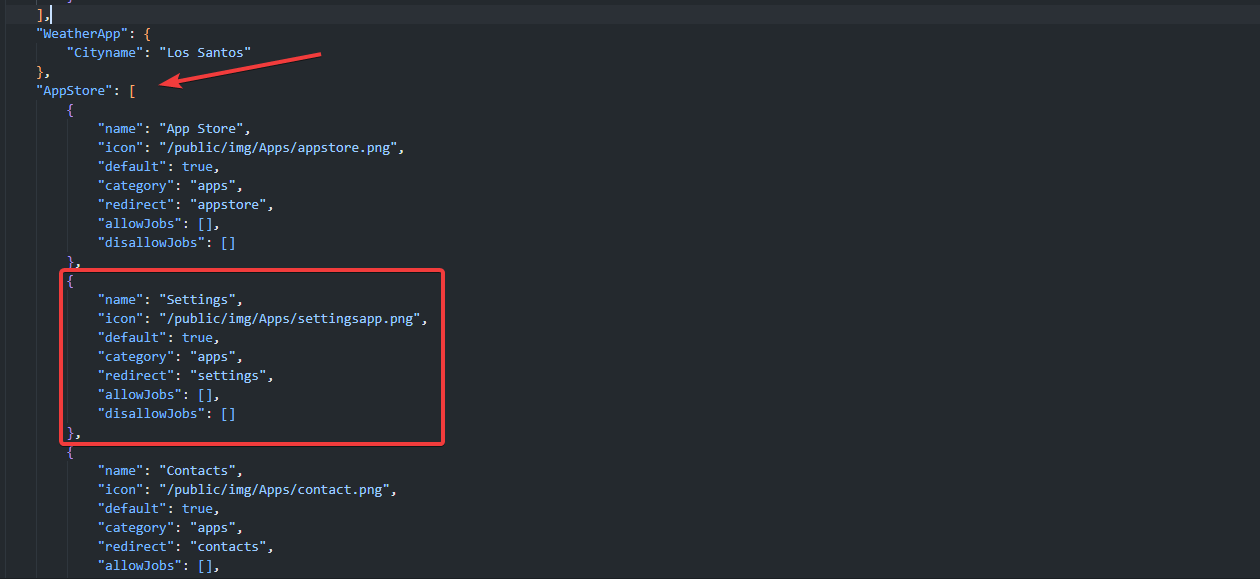
How can I remove apps?
How can I remove apps?
Images / Videos are not saved in the Gallery
Images / Videos are not saved in the Gallery
API.lua.Fivemanage Setup
Add jobs to the Service App / Add dispatches
Add jobs to the Service App / Add dispatches
number, name, img, jobname, and the coords.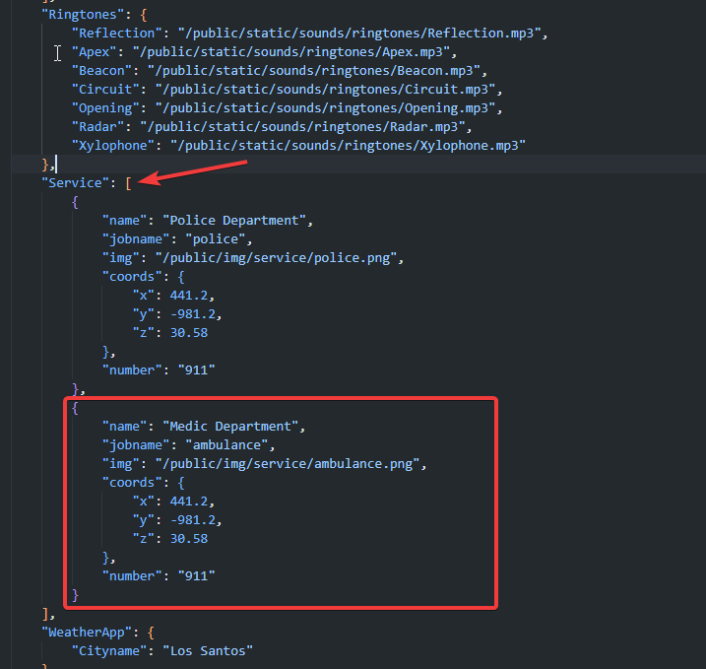
On start it shows ESX nil
On start it shows ESX nil
config.lua (ESX init).
Add my own notifications
Add my own notifications
sendNotification(text) and replace ESX.ShowNotification(text) with your notification trigger.Talk on the radio and voice at the same time
Talk on the radio and voice at the same time
EnableHardCoreMode to false in your SaltyChat config.Mouse stuck in the center when opening the phone
Mouse stuck in the center when opening the phone

Notify EMS when someone is down
Notify EMS when someone is down
- ESX
- QBCore
esx_ambulancejob/client/main.lua, find SendDistressSignal() and replace:Phone doesn't open after reviving
Phone doesn't open after reviving
Config.ESXplayerSpawnEvent to playerSpawned.
Disable cryptocurrency
Disable cryptocurrency
config.lua, set Config.Crypto = false.Lock radio channels
Lock radio channels
config.lua, configure Config.lockedRadioChannels with the channel list.
Change the phone language
Change the phone language
config.json.- ESX
- QBCore
config.lua, set the locale to your preferred language.SaltyChat: Radio doesn’t work
SaltyChat: Radio doesn’t work
If not, try our SaltyChat version.
Car is locked after delivery
Car is locked after delivery
clientAPI.lua.- ESX
- QBCore
Disable car delivery
Disable car delivery
DeliverCar to false.GetExtendedPlayers error (es_extended 1.1/1.2)
GetExtendedPlayers error (es_extended 1.1/1.2)
es_extended/server/functions.lua:Problems with VideoCall
Problems with VideoCall
- Clear your client cache.
- On the first video call after clearing the cache, accept the F8 prompt to allow recording.
- Accept the Windows Defender warning when it appears.
Use a fixed prefix for phone numbers
Use a fixed prefix for phone numbers
server/serverAPI.lua function getPhoneRandomNumber. If you change the prefix to more than two digits, also update the string.format.I forgot my phone PIN
I forgot my phone PIN
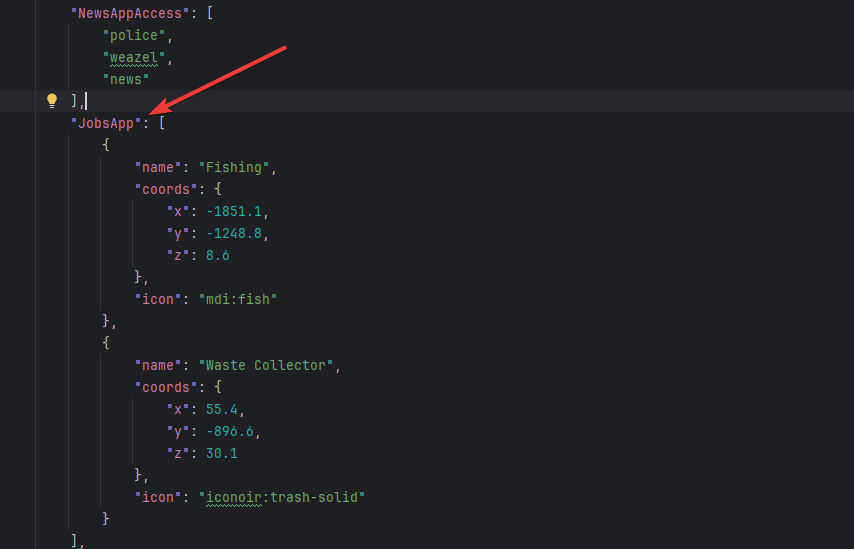
Add jobs to the Jobs App
Add jobs to the Jobs App

OxInventory snippets
OxInventory snippets