

Admin Menu
The Admin Menu is an in-game panel that lets you edit ‘s configuration files (config.lua, config.json, addon configs, and locales) directly from inside FiveM — no manual file editing or FTP uploads required.
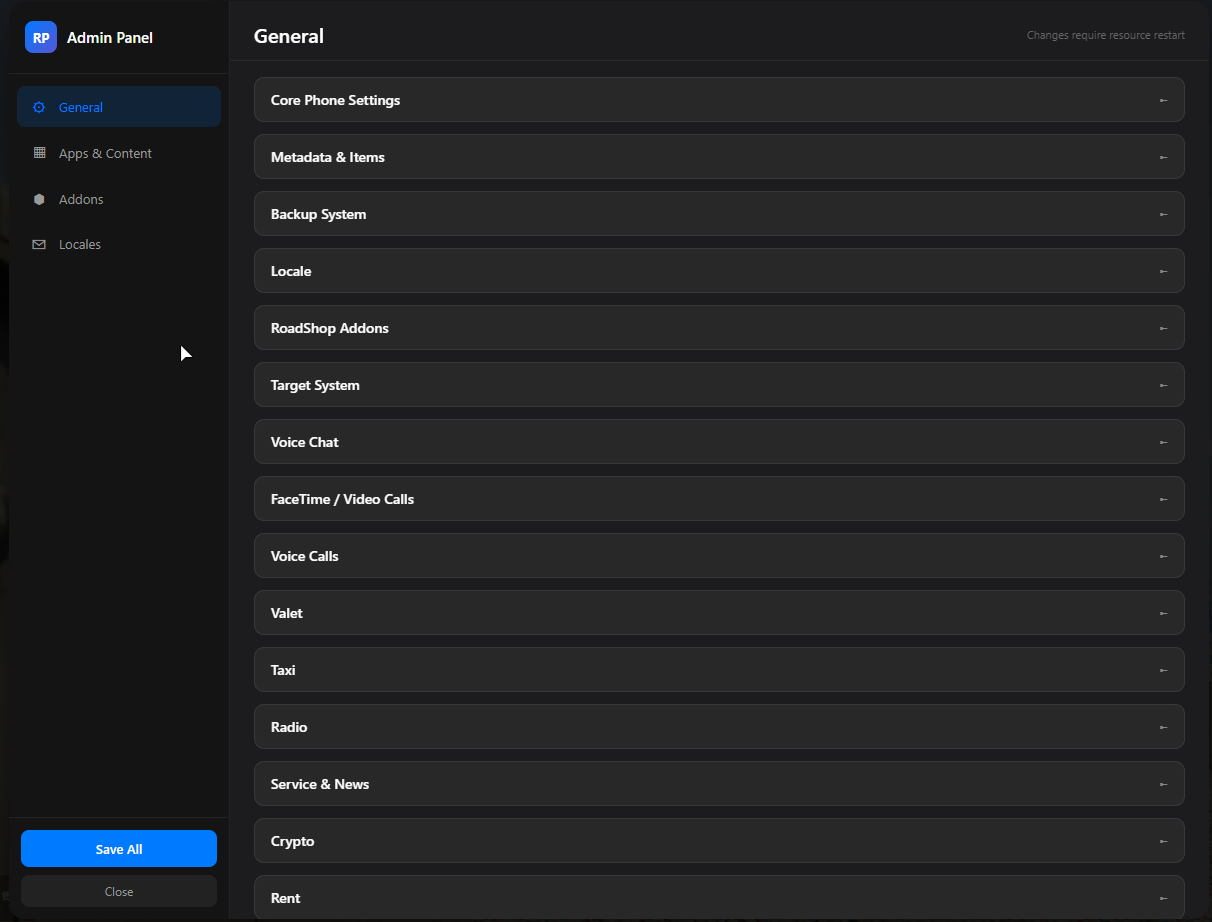
/phoneadmin command. Players without permission still see the panel, but only get a guided “how to grant yourself access” view.
Granting Access
The Admin Menu is gated by theroadphone.phoneadmin ACE permission. Only players (or principals) with this permission can read or save configuration data.
1
Run /phoneadmin in-game
The panel opens with a locked screen showing the exact command you need.
2
Click `Copy`
The button copies a pre-built
add_ace command containing your own Rockstar license — already ready for paste.3
Paste into your server console or permissions.cfg
Either paste it live in the server console for a one-shot grant, or add it to
permissions.cfg (or server.cfg) for permanent access.4
Restart the server (or reload permissions)
Once the ACE is loaded, run
/phoneadmin again — the full panel will open.The license inside the command is detected automatically from your client. If detection fails (extremely rare), the panel shows a warning and you’ll need to replace
identifier.license:<your-license> manually.Granting via groups
You can also grant the permission to an existing principal group instead of a specific player:Opening the Panel
The command must be used in-game. Running it from the server console prints a notice and does nothing.
Panel Layout
The panel is split into a left sidebar (navigation + actions) and a right content area (active tab).Sidebar
Tabs
General — config.lua
General — config.lua
Edits the top-level
Config.* table from lua-code/config.lua. This includes framework selection, inventory system, metadata flags, FaceTime/voice settings, battery system, SIM card DLC, and most other top-level switches.Use this tab to flip booleans, change numbers, and tweak strings. Complex Lua values like vector3(...) or function definitions are preserved as-is during the round-trip.Apps & Content — config.json
Apps & Content — config.json
Edits
public/static/config/config.json — the frontend-side configuration that controls which apps appear on the home screen, default wallpaper, app icons, theme colors, and bootscreen settings.Changes here are reflected after the resource restarts (the JSON is loaded by the NUI on phone init).Addons
Addons
Lists every addon under
lua-code/addons/*/config.lua . Each addon’s config is loaded into a separate sub-section so you can configure them independently without leaving the panel.Locales
Locales
Two-part editor:
- Backend locales — server-side translations from
lua-code/locales/*.lua(notification titles, system messages) - Frontend locales — client-side translations from
public/static/locales/*.json(every UI string in the phone)
Saving Changes
Click Save All in the sidebar. The panel writes each modified section in sequence:config.luaconfig.json- Addon configs
- Backend locales (one language per round-trip)
- Frontend locales (one language per round-trip)
Saves use a chunked transport under the hood to bypass FiveM’s reliable-event size limit. Large config payloads are split into 8 KB chunks, sent over
roadphone:admin:saveChunk, reassembled on the server, and only then persisted to disk.Live View Without Permission
If a player runs/phoneadmin without roadphone.phoneadmin, the panel still opens — but instead of the editing UI, they see a lock screen with:
- The required ACE permission name
- A pre-filled
add_acecommand with their own Rockstar license & name baked in - A
Copybutton (writes the command to the OS clipboard)
/phoneadmin, copy the command, and send it to whoever administers permissions.cfg.
The sidebar tabs and Save button are hidden in this mode — only the Close button remains visible.
Troubleshooting
”Failed to load config”
The server callbackadmin:getServerConfig returned an error. Common causes:
- The resource is starting up — wait a few seconds and retry
- A
config.luasyntax error is preventing the file from being parsed (check the server console)
Saved but nothing changed in-game
Configuration is loaded once at resource startup. After saving you mustrestart roadphone for the new values to take effect — there is no hot-reload.
Copy button shows “Copy failed”
The browser clipboard API is blocked in FiveM NUI by Permissions-Policy. The fallback uses<textarea> + document.execCommand('copy'), which is widely supported in CEF — if it still fails, copy the displayed command manually.
Panel opens but tabs are missing
That meansnoPermission was returned. Check that:
- Your ACE entry is loaded (
/acesin console showsroadphone.phoneadmin → allowfor your principal) - You restarted the server (or ran
refresh+start roadphone) after editingpermissions.cfg - You’re using the correct license —
identifier.license:for the FiveM/Rockstar license, not Steam, Discord, or IP
Save reports success but the files are unchanged
On Linux the FXServer process often runs as a different user than the one that uploaded the resource, leaving it without write permission on the config files. See Admin Menu File Permissions for the diagnosis and thechown fix.