

Metadata System
The metadata system stores phone data (contacts, messages, notes, settings) directly on the phone item in the player’s inventory. This enables powerful roleplay features like phone stealing, phone trading, and owning multiple phones with separate data.Why Use Metadata?
Phone Stealing
When a player steals another player’s phone, they can see all the victim’s data - messages, contacts, photos, and more.
Phone Trading
When a phone is given or sold to another player, all data stays on the phone and transfers with it.
Multiple Phones
Each phone item has its own unique phone number and data. Players can own multiple phones for different purposes.
Data Persistence
Phone data is stored on the item itself, making it independent of player identity.
Configuration
Openconfig.lua and configure the following options:
config.lua
Configuration Options
Supported Inventory Systems
Leave
Config.InventorySystem = 'auto' unless detection picks the wrong one — the bridge checks which inventory resource is actually running.ox_inventory Setup
When usingox_inventory, you need to remove some default code that interferes with RoadPhone’s phone handling.
1
Open the ox_inventory client file
Navigate to:
ox_inventory/modules/items/client.lua2
Find and remove the phone code
Look for the 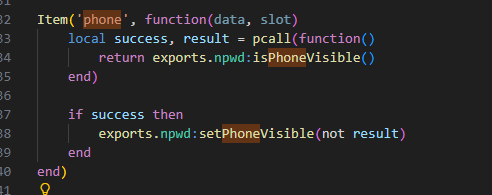 The code block to remove looks similar to this:
phone item registration and remove or comment out the entire block.3
Restart your server
After removing the code, restart your FiveM server for changes to take effect.
This step is required because ox_inventory has built-in phone handling that conflicts with RoadPhone’s metadata system.
How It Works
Data Flow
1
Player uses phone item
When a player uses a phone from their inventory, RoadPhone reads the metadata stored on that specific item.
2
Phone number assignment
If the phone has no number assigned, a unique number is generated and stored in the item’s metadata.
3
Data loading
All phone data (contacts, messages, settings, etc.) is loaded from the item’s metadata.
4
Data saving
Changes are written back to the item — buffered by
Config.PhoneWriteBehindMs so a burst of edits becomes one write, and flushed when the phone closes.Multiple Phones
When a player has multiple phones in their inventory:- The system tracks which phone slot is currently active
- Each phone has its own phone number and data
- Switching phones loads the new phone’s data automatically
Metadata Structure
The item stores device data and pointers to signed-in accounts; account content remains in the database. Fields are created on demand. Fold uses the configuredphone_fold item name, including on Jaksam; no special phone_model field is required. See Fold persistence.
Limits
Arrays are capped so an item’s metadata cannot grow without bound (server/phone_metadata.lua):
When a limit is reached, the oldest entry is dropped.
Writes are buffered
Changes are coalesced instead of hitting the inventory on every keystroke:config.lua
Backup System
WithConfig.BackupEnabled = true, players can backup and restore their phone data.
Features
- Manual Backups: Players can create backups anytime
- Backup Naming: Custom names for easy identification
- Restore: Restore any previous backup to current phone
- Limit:
Config.MaxBackupsPerPhoneper phone number (default 5)
Use Cases
- Before giving away a phone, backup the data
- Restore data to a new phone after losing the old one
- Keep multiple backup points for important data
SIM cards (
phone_sims, phone_active_sim) and the battery level are deliberately left out of backups. They are hardware state — restoring them would duplicate SIM cards and hand out free charge.Troubleshooting
Phone data doesn't save
Phone data doesn't save
Possible causes:
Config.UseMetadatais set tofalse- Inventory system doesn’t support metadata
- Wrong
Config.InventorySystemvalue
Wrong phone data loads
Wrong phone data loads
Possible causes:
- Active phone slot tracking issue
- Player has multiple phones
ox_inventory phone not working
ox_inventory phone not working
Possible causes:
- Default phone code not removed from ox_inventory
- Conflicting phone resource
Phone number changes randomly
Phone number changes randomly
Possible causes:
- Metadata not saving properly
- Inventory system issue
Migration from Non-Metadata
If you’re switching from the non-metadata system to metadata:Migration Options
- Fresh Start: Simply enable metadata - all phones start fresh
- Manual Migration: Use the
/phonemigratecommand (see Phone Migrate) - Backup First: Have players backup important data before migration