> ## Documentation Index
> Fetch the complete documentation index at: https://docs.roadshop.org/llms.txt
> Use this file to discover all available pages before exploring further.
# Installation
> Complete setup guide for the RoadVR script
# Installation
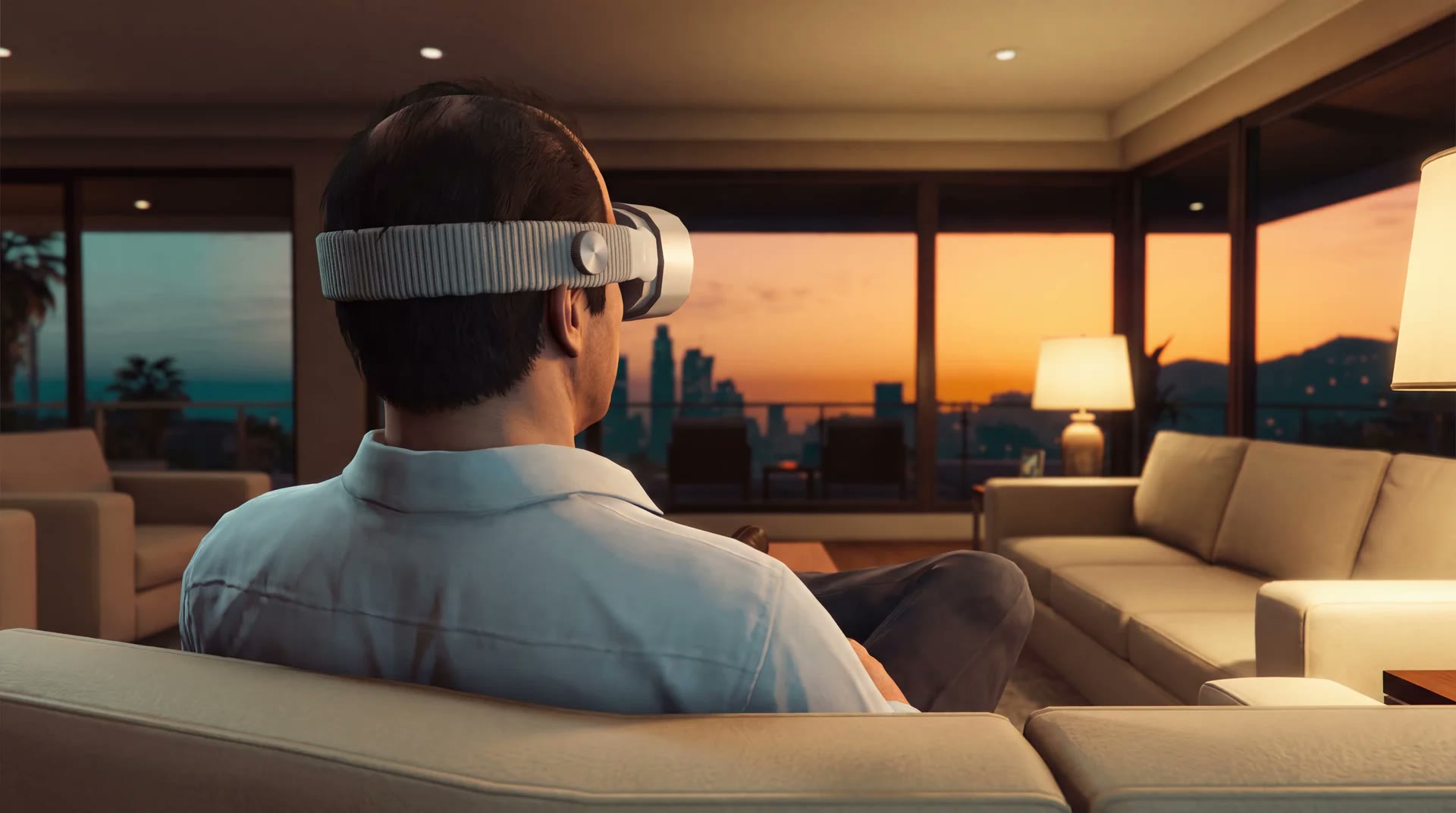 RoadVR is a spatial AR interface for FiveM: world-anchored HTML panels the
player can place in the room, carry along and interact with. It runs on ESX,
QBCore, Qbox and standalone.
**Do not use FileZilla**. It can corrupt or skip hidden files during upload.
We recommend **WinSCP**.
**There is no transaction ID to enter and no SQL file to import.** Unlike our
other scripts, RoadVR has no `API.lua` key step — in RoadVR, `API.lua` is the
exports file for other developers. The database sets itself up on first
start. If you came here looking for the license step, there isn't one.
## 📋 Prerequisites
Required. Must be started before RoadVR.
Required. Every persistence path depends on it.
WinSCP or similar (not FileZilla)
Optional — only if you want the headset to be a real item
## 🚀 Setup Instructions
Extract `roadvr` into your resources folder. We recommend a `[road]`
folder alongside our other scripts:
```bash theme={null}
resources/
└── [road]/
├── roadvr/
└── other_scripts/
```
Add an item called `roadvr_headset` to your inventory. The name is
configurable through `Config.Item`.
```lua data/items.lua theme={null}
['roadvr_headset'] = {
label = 'VR Headset',
weight = 400,
stack = false,
close = true,
description = 'Put it on and the room fills with windows.',
},
```
Add `roadvr_headset` to your items table the same way you add any
other usable item. RoadVR registers the usable item itself — you only
have to make the item exist.
Leave `Config.Item` empty:
```lua config.lua theme={null}
Config.Item = ''
```
Everybody can then use the headset without carrying anything. The way
in is `/roadvr_toggle` or the FiveM keybind of the same name, which
the player assigns themselves.
Everything lives in `config.lua`. For a first start you rarely need to
touch more than the top:
```lua config.lua theme={null}
Config.Locale = 'en' -- server-wide language for Lua messages
Config.Item = 'roadvr_headset' -- empty string = no item needed
Config.FocusKey = 'E' -- focuses the panel you are looking at
Config.MaxPanels = 4
Config.Debug = false -- keep this false on a live server
```
`Config.Locale` ships as `'en'`. The German translation is included —
set it to `'de'` and the Lua-side notifications switch over.
Ship with `Config.Debug = false`. It enables `/roadvr_calib` and the
in-game tuning keys, which players should not have.
Interface language is **not** `Config.Locale`. Each player picks their
own in the headset's Settings app. `Config.Locale` only covers Lua-side
messages — notifications and errors.
```cfg server.cfg theme={null}
ensure ox_lib
ensure oxmysql
ensure roadvr
```
## 🗄️ About the database
The four tables are created on first start, and an older installation has
missing columns added automatically. You do not have to prepare anything.
`sql/roadvr.sql` ships for two cases only:
* your database user has no `CREATE` permission
* you want to read the schema before a script touches your database
## ✅ Verification
Run this in your **server console**:
```bash theme={null}
roadvr diag
```
It checks the bridge, ox\_lib, oxmysql, your inventory, the locale, the
database table, and the optional xsound and RoadPhone integrations.
Then in game: use the item, and the visor should open onto the launcher.
## 🖼️ One thing that is deliberately missing
RoadVR ships **without panorama images** for the Environments app. An 8192px
equirectangular JPG is around 36 MB, downloaded once by every player, and
which ones those should be is the server owner's call.
Where to get panoramas and how to add them
## 📦 What else is in the download
`examples/` carries three ready-to-run resources you can `ensure` as they are:
| Resource | What it is |
| ---------------------- | ------------------------------------------------------------------------------------ |
| `roadvr_mediaapp` | The **Media** app — YouTube in a window. Start it and it appears on the home screen. |
| `roadvr_exampleapp` | A worked example of an app that reads the game through its own Lua. |
| `roadvr_examplewidget` | A worked example of a wall widget. |
How the examples are built, and how to write your own
## 📚 Next Steps
Keys, focus mode and how windows are moved
What comes with the headset
Put your own resource on the home screen
Any problems or questions?
RoadVR is a spatial AR interface for FiveM: world-anchored HTML panels the
player can place in the room, carry along and interact with. It runs on ESX,
QBCore, Qbox and standalone.
**Do not use FileZilla**. It can corrupt or skip hidden files during upload.
We recommend **WinSCP**.
**There is no transaction ID to enter and no SQL file to import.** Unlike our
other scripts, RoadVR has no `API.lua` key step — in RoadVR, `API.lua` is the
exports file for other developers. The database sets itself up on first
start. If you came here looking for the license step, there isn't one.
## 📋 Prerequisites
Required. Must be started before RoadVR.
Required. Every persistence path depends on it.
WinSCP or similar (not FileZilla)
Optional — only if you want the headset to be a real item
## 🚀 Setup Instructions
Extract `roadvr` into your resources folder. We recommend a `[road]`
folder alongside our other scripts:
```bash theme={null}
resources/
└── [road]/
├── roadvr/
└── other_scripts/
```
Add an item called `roadvr_headset` to your inventory. The name is
configurable through `Config.Item`.
```lua data/items.lua theme={null}
['roadvr_headset'] = {
label = 'VR Headset',
weight = 400,
stack = false,
close = true,
description = 'Put it on and the room fills with windows.',
},
```
Add `roadvr_headset` to your items table the same way you add any
other usable item. RoadVR registers the usable item itself — you only
have to make the item exist.
Leave `Config.Item` empty:
```lua config.lua theme={null}
Config.Item = ''
```
Everybody can then use the headset without carrying anything. The way
in is `/roadvr_toggle` or the FiveM keybind of the same name, which
the player assigns themselves.
Everything lives in `config.lua`. For a first start you rarely need to
touch more than the top:
```lua config.lua theme={null}
Config.Locale = 'en' -- server-wide language for Lua messages
Config.Item = 'roadvr_headset' -- empty string = no item needed
Config.FocusKey = 'E' -- focuses the panel you are looking at
Config.MaxPanels = 4
Config.Debug = false -- keep this false on a live server
```
`Config.Locale` ships as `'en'`. The German translation is included —
set it to `'de'` and the Lua-side notifications switch over.
Ship with `Config.Debug = false`. It enables `/roadvr_calib` and the
in-game tuning keys, which players should not have.
Interface language is **not** `Config.Locale`. Each player picks their
own in the headset's Settings app. `Config.Locale` only covers Lua-side
messages — notifications and errors.
```cfg server.cfg theme={null}
ensure ox_lib
ensure oxmysql
ensure roadvr
```
## 🗄️ About the database
The four tables are created on first start, and an older installation has
missing columns added automatically. You do not have to prepare anything.
`sql/roadvr.sql` ships for two cases only:
* your database user has no `CREATE` permission
* you want to read the schema before a script touches your database
## ✅ Verification
Run this in your **server console**:
```bash theme={null}
roadvr diag
```
It checks the bridge, ox\_lib, oxmysql, your inventory, the locale, the
database table, and the optional xsound and RoadPhone integrations.
Then in game: use the item, and the visor should open onto the launcher.
## 🖼️ One thing that is deliberately missing
RoadVR ships **without panorama images** for the Environments app. An 8192px
equirectangular JPG is around 36 MB, downloaded once by every player, and
which ones those should be is the server owner's call.
Where to get panoramas and how to add them
## 📦 What else is in the download
`examples/` carries three ready-to-run resources you can `ensure` as they are:
| Resource | What it is |
| ---------------------- | ------------------------------------------------------------------------------------ |
| `roadvr_mediaapp` | The **Media** app — YouTube in a window. Start it and it appears on the home screen. |
| `roadvr_exampleapp` | A worked example of an app that reads the game through its own Lua. |
| `roadvr_examplewidget` | A worked example of a wall widget. |
How the examples are built, and how to write your own
## 📚 Next Steps
Keys, focus mode and how windows are moved
What comes with the headset
Put your own resource on the home screen
Any problems or questions?