> ## Documentation Index
> Fetch the complete documentation index at: https://docs.roadshop.org/llms.txt
> Use this file to discover all available pages before exploring further.
# Admin Menu
> In-game configuration panel for managing config.lua, config.json, addons and locales without leaving the server
# Admin Menu
The Admin Menu is an in-game panel that lets you edit RoadPhone's configuration files (`config.lua`, `config.json`, addon configs, and locales) directly from inside FiveM — no manual file editing or FTP uploads required.
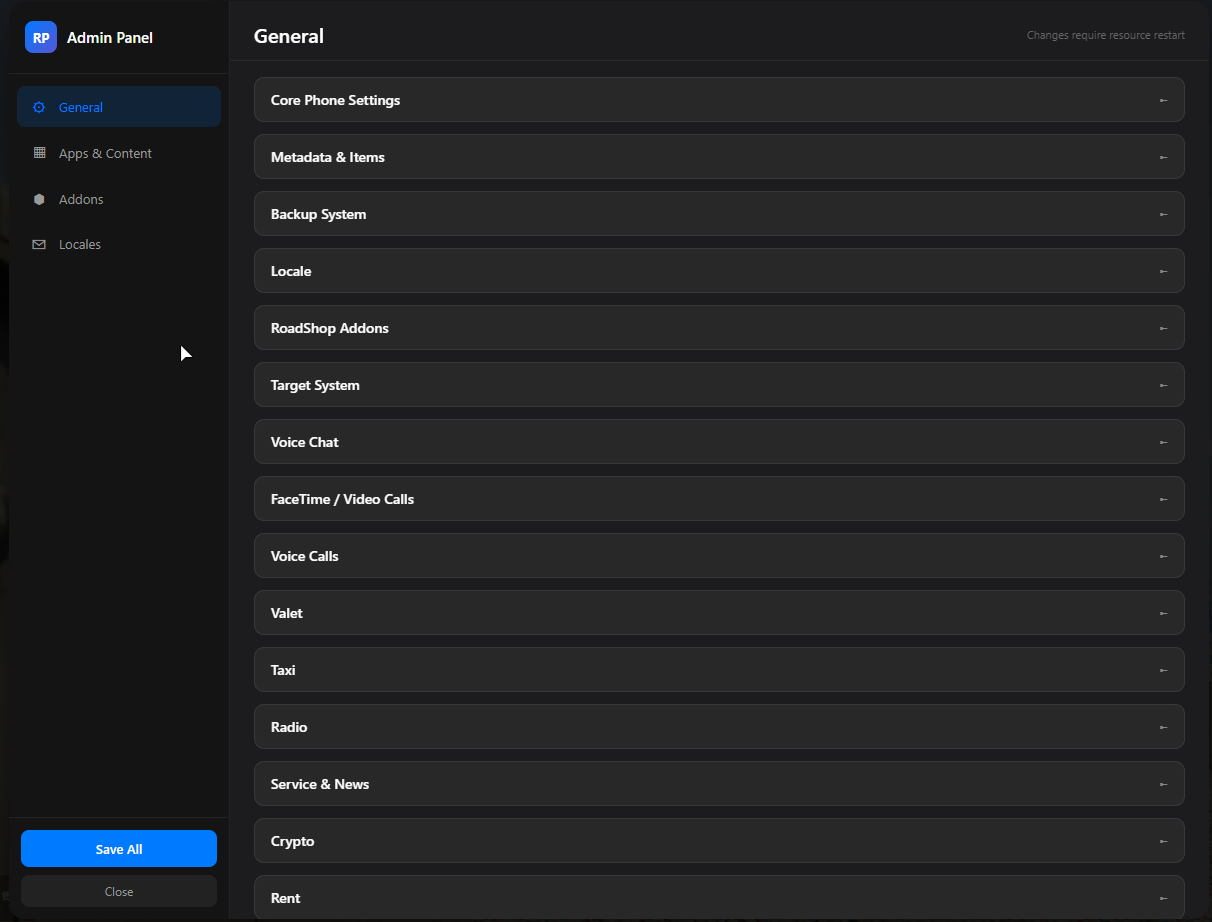 Open it with the `/phoneadmin` command. Players without permission still see the panel, but only get a guided "how to grant yourself access" view.
## Granting Access
The Admin Menu is gated by the **`roadphone.phoneadmin`** ACE permission. Only players (or principals) with this permission can read or save configuration data.
The panel opens with a locked screen showing the exact command you need.
The button copies a pre-built `add_ace` command containing your own Rockstar license — already ready for paste.
Either paste it live in the server console for a one-shot grant, or add it to `permissions.cfg` (or `server.cfg`) for permanent access.
Once the ACE is loaded, run `/phoneadmin` again — the full panel will open.
The copied command looks like this:
```bash theme={null}
add_ace identifier.license:c54b3db90c423dfbdd9766434430e57f654e08aee7d6c roadphone.phoneadmin allow # Add permission to 'XY' Rockstar license
```
The license inside the command is detected automatically from your client. If detection fails (extremely rare), the panel shows a warning and you'll need to replace `identifier.license:` manually.
### Granting via groups
You can also grant the permission to an existing principal group instead of a specific player:
```bash theme={null}
# Grant to the built-in admin group
add_ace group.admin roadphone.phoneadmin allow
# Or to your own custom group
add_ace group.roadphone_admin roadphone.phoneadmin allow
add_principal identifier.license:abc123 group.roadphone_admin
```
This permission gives full read/write access to RoadPhone's config files on the server filesystem. Only grant it to trusted staff.
## Opening the Panel
```
/phoneadmin
```
The command must be used **in-game**. Running it from the server console prints a notice and does nothing.
Press **Escape** or click **Close** in the sidebar to dismiss the panel. Unsaved changes are kept in memory until you click **Save All** — closing the panel without saving discards your edits.
## Panel Layout
The panel is split into a left **sidebar** (navigation + actions) and a right **content area** (active tab).
### Sidebar
| Element | Purpose |
| ------------ | ------------------------------------------------------------- |
| **Tab list** | Switches between General, Apps & Content, Addons, and Locales |
| **Save All** | Persists every modified section to disk in one batch |
| **Close** | Closes the panel; unsaved changes are dropped |
### Tabs
Edits the top-level `Config.*` table from `lua-code/config.lua`. This includes framework selection, inventory system, metadata flags, FaceTime/voice settings, battery system, SIM card DLC, and most other top-level switches.
Use this tab to flip booleans, change numbers, and tweak strings. Complex Lua values like `vector3(...)` or function definitions are preserved as-is during the round-trip.
Edits `public/static/config/config.json` — the frontend-side configuration that controls which apps appear on the home screen, default wallpaper, app icons, theme colors, and bootscreen settings.
Changes here are reflected after the resource restarts (the JSON is loaded by the NUI on phone init).
Lists every addon under `lua-code/addons/*/config.lua` (mechanic, simcard, valet, etc.). Each addon's config is loaded into a separate sub-section so you can configure them independently without leaving the panel.
Two-part editor:
* **Backend locales** — server-side translations from `lua-code/locales/*.lua` (notification titles, system messages)
* **Frontend locales** — client-side translations from `public/static/locales/*.json` (every UI string in the phone)
Both are loaded as plain key/value tables so you can edit any language without juggling files.
## Saving Changes
Click **Save All** in the sidebar. The panel writes each modified section in sequence:
1. `config.lua`
2. `config.json`
3. Addon configs
4. Backend locales (one language per round-trip)
5. Frontend locales (one language per round-trip)
Saves use a **chunked transport** under the hood to bypass FiveM's reliable-event size limit. Large config payloads are split into 8 KB chunks, sent over `roadphone:admin:saveChunk`, reassembled on the server, and only then persisted to disk.
A green confirmation appears on success. Errors are aggregated into a single red banner — fix the listed sections and click Save All again.
After saving, **restart the resource** for the new values to take effect. The reminder text "Changes require resource restart" sits in the panel header to remind you.
```bash theme={null}
# In server console / txAdmin
restart roadphone
```
## Live View Without Permission
If a player runs `/phoneadmin` without `roadphone.phoneadmin`, the panel still opens — but instead of the editing UI, they see a **lock screen** with:
* The required ACE permission name
* A pre-filled `add_ace` command with their own Rockstar license & name baked in
* A `Copy` button (writes the command to the OS clipboard)
This makes it easy to onboard new staff: just have them run `/phoneadmin`, copy the command, and send it to whoever administers `permissions.cfg`.
The sidebar tabs and Save button are hidden in this mode — only the Close button remains visible.
## Troubleshooting
### "Failed to load config"
The server callback `admin:getServerConfig` returned an error. Common causes:
* The resource is starting up — wait a few seconds and retry
* A `config.lua` syntax error is preventing the file from being parsed (check the server console)
### Saved but nothing changed in-game
Configuration is loaded once at resource startup. After saving you must `restart roadphone` for the new values to take effect — there is no hot-reload.
### Copy button shows "Copy failed"
The browser clipboard API is blocked in FiveM NUI by Permissions-Policy. The fallback uses `
Open it with the `/phoneadmin` command. Players without permission still see the panel, but only get a guided "how to grant yourself access" view.
## Granting Access
The Admin Menu is gated by the **`roadphone.phoneadmin`** ACE permission. Only players (or principals) with this permission can read or save configuration data.
The panel opens with a locked screen showing the exact command you need.
The button copies a pre-built `add_ace` command containing your own Rockstar license — already ready for paste.
Either paste it live in the server console for a one-shot grant, or add it to `permissions.cfg` (or `server.cfg`) for permanent access.
Once the ACE is loaded, run `/phoneadmin` again — the full panel will open.
The copied command looks like this:
```bash theme={null}
add_ace identifier.license:c54b3db90c423dfbdd9766434430e57f654e08aee7d6c roadphone.phoneadmin allow # Add permission to 'XY' Rockstar license
```
The license inside the command is detected automatically from your client. If detection fails (extremely rare), the panel shows a warning and you'll need to replace `identifier.license:` manually.
### Granting via groups
You can also grant the permission to an existing principal group instead of a specific player:
```bash theme={null}
# Grant to the built-in admin group
add_ace group.admin roadphone.phoneadmin allow
# Or to your own custom group
add_ace group.roadphone_admin roadphone.phoneadmin allow
add_principal identifier.license:abc123 group.roadphone_admin
```
This permission gives full read/write access to RoadPhone's config files on the server filesystem. Only grant it to trusted staff.
## Opening the Panel
```
/phoneadmin
```
The command must be used **in-game**. Running it from the server console prints a notice and does nothing.
Press **Escape** or click **Close** in the sidebar to dismiss the panel. Unsaved changes are kept in memory until you click **Save All** — closing the panel without saving discards your edits.
## Panel Layout
The panel is split into a left **sidebar** (navigation + actions) and a right **content area** (active tab).
### Sidebar
| Element | Purpose |
| ------------ | ------------------------------------------------------------- |
| **Tab list** | Switches between General, Apps & Content, Addons, and Locales |
| **Save All** | Persists every modified section to disk in one batch |
| **Close** | Closes the panel; unsaved changes are dropped |
### Tabs
Edits the top-level `Config.*` table from `lua-code/config.lua`. This includes framework selection, inventory system, metadata flags, FaceTime/voice settings, battery system, SIM card DLC, and most other top-level switches.
Use this tab to flip booleans, change numbers, and tweak strings. Complex Lua values like `vector3(...)` or function definitions are preserved as-is during the round-trip.
Edits `public/static/config/config.json` — the frontend-side configuration that controls which apps appear on the home screen, default wallpaper, app icons, theme colors, and bootscreen settings.
Changes here are reflected after the resource restarts (the JSON is loaded by the NUI on phone init).
Lists every addon under `lua-code/addons/*/config.lua` (mechanic, simcard, valet, etc.). Each addon's config is loaded into a separate sub-section so you can configure them independently without leaving the panel.
Two-part editor:
* **Backend locales** — server-side translations from `lua-code/locales/*.lua` (notification titles, system messages)
* **Frontend locales** — client-side translations from `public/static/locales/*.json` (every UI string in the phone)
Both are loaded as plain key/value tables so you can edit any language without juggling files.
## Saving Changes
Click **Save All** in the sidebar. The panel writes each modified section in sequence:
1. `config.lua`
2. `config.json`
3. Addon configs
4. Backend locales (one language per round-trip)
5. Frontend locales (one language per round-trip)
Saves use a **chunked transport** under the hood to bypass FiveM's reliable-event size limit. Large config payloads are split into 8 KB chunks, sent over `roadphone:admin:saveChunk`, reassembled on the server, and only then persisted to disk.
A green confirmation appears on success. Errors are aggregated into a single red banner — fix the listed sections and click Save All again.
After saving, **restart the resource** for the new values to take effect. The reminder text "Changes require resource restart" sits in the panel header to remind you.
```bash theme={null}
# In server console / txAdmin
restart roadphone
```
## Live View Without Permission
If a player runs `/phoneadmin` without `roadphone.phoneadmin`, the panel still opens — but instead of the editing UI, they see a **lock screen** with:
* The required ACE permission name
* A pre-filled `add_ace` command with their own Rockstar license & name baked in
* A `Copy` button (writes the command to the OS clipboard)
This makes it easy to onboard new staff: just have them run `/phoneadmin`, copy the command, and send it to whoever administers `permissions.cfg`.
The sidebar tabs and Save button are hidden in this mode — only the Close button remains visible.
## Troubleshooting
### "Failed to load config"
The server callback `admin:getServerConfig` returned an error. Common causes:
* The resource is starting up — wait a few seconds and retry
* A `config.lua` syntax error is preventing the file from being parsed (check the server console)
### Saved but nothing changed in-game
Configuration is loaded once at resource startup. After saving you must `restart roadphone` for the new values to take effect — there is no hot-reload.
### Copy button shows "Copy failed"
The browser clipboard API is blocked in FiveM NUI by Permissions-Policy. The fallback uses `